
Audi radio codes
Get your Audi radio code online in 3 minutes and enjoy your favourite music again — no dealer visit required.
Get Radio Code
Example radio identifiers: Audi
Compare the format of your number. Enter the details from your own radio in the form, not these examples. Where can I find my radio’s serial number?
AUZ
AUZ5Z4C5221241
AUZ
AUZ1Z4K3201151
AUZ
AUZ2Z7B1331142
AUZ
AUZ2Z3B2314121
Concert · Grundig
AUZ2Z3A1080205
Concert · Blaupunkt
AUZ1Z3K6038831
Chorus · Blaupunkt
AUZ1Z2I5213130
Chorus · Grundig
AUZ2Z2B2046562
RNS-E · Navigation plus
AUZBZ7E0638195
Audi Radio Navigation · BNO 881
AUZ1Z1F6412082
How to find your Audi radio serial number
Choose the radio that looks like yours. See where to find its serial number and what to enter in the form.
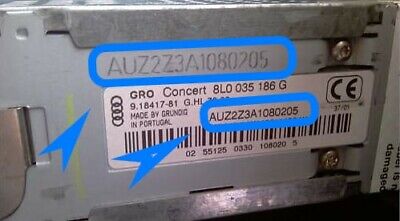
Concert · Grundig
Serial number in the selected photo:
AUZ2Z3A1080205
Chorus / Concert / Symphony
- Switch off the radio and ignition. Depending on the mounting, use the correct radio removal keys, or remove the trim and undo the retaining screws. Slide the unit out far enough to see its label.
- Check the top, sides and back of the casing. Look for the number starting with AUZ, printed on the label or stamped into the metal. Take a clear photo of the entire label.
- Enter the complete serial number in the form. Keep every letter and zero, including a zero at the start of the numeric section. Compare your entry with the label before continuing.
The photos show Concert and Chorus units from different manufacturers. Symphony has a different front panel, but its serial is also on the casing. Use removal keys that fit your radio's slots; the number of keys depends on the version.
How do I enter the code?
On Concert II units with SCAN and RDS buttons, hold both together until “SAFE” changes to “1000”, then release them. Use station buttons 1–4 to set the four digits. Only after checking the code, hold SCAN and RDS again until “SAFE” appears, then release. Other Concert, Chorus and Symphony versions may use different button pairs.
RNS-E · Navigation plus
- Switch on the ignition, then your RNS-E. When the PIN entry / Enter PIN screen appears, check the bottom of the display.
- If a complete number starting with AUZ is shown there, copy it with all its letters and zeros. The asterisks in the PIN field are not the serial number.
- If the serial is missing, incomplete or replaced by question marks, read it from the label on the casing. Use the correct removal keys to slide the radio out and reach the label.
RNS-E is not a touchscreen. Use its rotary control and buttons. Whether it displays the serial depends on its software version; use the casing label if the number is not shown.
How do I enter the code?
On the PIN entry screen, turn the main rotary control to select a digit, then press it to enter that digit. Repeat for all four digits. Select OK on screen and press the rotary control to confirm.
Audi Radio Navigation
- Switch off the radio and ignition. Depending on the mounting, use the correct radio removal keys, or remove the trim and undo the retaining screws. Slide the unit out far enough to see its label.
- Check the top, sides and back of the casing. Look for the number starting with AUZ, printed on the label or stamped into the metal. Take a clear photo of the entire label.
- Enter the complete serial number in the form. Keep every letter and zero, including a zero at the start of the numeric section. Compare your entry with the label before continuing.
This example shows Audi Radio Navigation BNO 881: its AUZ serial is printed on the label and stamped into the metal. The RNS-E screen method does not apply to every navigation generation.
A typical AUZ serial has 13 characters. It identifies the radio, and is different from the vehicle VIN, part number and 4-digit code.
Also attach a photo of the label on the radio casing to your order. The form requires this even if you read the serial number on screen.
Have a different radio?
Audi MMI, or a radio that is not pictured? Find the serial number on its label or stamped into the casing. Enter it in full in the form, including every letter and zero. A “Component protection” message needs diagnosis, rather than a standard radio PIN.
Audi radio code questions
A code may be needed after a power loss or when the radio is moved to another car. Some factory-paired units recognise their original car: switch on the ignition first, then the radio. If it still asks for a code, find the radio's serial number.
A typical serial starts with AUZ and has 13 characters, for example AUZ5Z4C5221241. Look on the label or for a number stamped into the casing. Keep every letter and zero. The large part number beside the manufacturer's logo is a different identifier.
This form needs the radio's serial number. The VIN identifies the car and cannot replace the radio serial, particularly if a previous owner changed the unit.
Most radios covered here have a label on the casing. Switch off the radio and ignition, then release the unit using the method for its mounting: removal keys in the slots, or removing the trim and retaining screws. If you can reach the label, you do not need to disconnect the wiring. Do not pull on the wiring loom. RNS-E and certain SEAT radios can show the serial on screen; see the guide above.
Reading the number directly from the unit is the most reliable option. A card may belong to a radio that was previously fitted. Serial No. identifies the radio; Code No. is the actual PIN. They are different fields.
Barcode text may contain extra characters such as 014, asterisks or a check character. Compare it with the serial printed separately or stamped into the metal. Do not guess between I/1, O/0 or Z/2. The examples also cover older Grundig formats used in SEAT and Škoda radios.
No. The same car model could have different radios fitted, and the unit may have been replaced. Identify it by its appearance and label. The guide photos help you recognise it; code availability is checked using its serial number.
The older radios covered here use a four-digit code. Depending on the panel, use station buttons 1–4, the buttons beside the display or a rotary control to set the digits. On a touchscreen, select them directly. The confirmation control varies by model, so follow the instructions beside your radio above or in its manual. “1000” is the code entry screen, not a universal radio code.
SAFE can mean the radio is waiting for its code. SAFE 2 or 2 SAFE often follows incorrect attempts. Many older units need to remain switched on for about an hour, with the ignition on as well where the model requires it. Interrupting the power may interrupt the wait. Enter the correct PIN once the code entry screen returns. The exact waiting time and conditions depend on the radio.
Use the serial number of the radio you bought, rather than the previous unit's serial or the car's VIN. A PIN does not replace vehicle configuration. If the unit reports component protection, separate diagnosis and adaptation are needed.
Yes. The code stays linked to the same radio. Keep it with the serial number so you can use it again whenever the unit requests its PIN. A replacement radio needs its own code.
Enter your radio serial number and continue. You will see the price and availability before payment. If the form requires a label photo, attach it in the upload field.
Compare the serial in your order with the label, check every PIN digit including any leading zero, and use the confirmation method for your model. The code must belong to the radio currently fitted in the car. If incorrect attempts have stopped code entry, wait as directed in the radio’s manual.
No. Component protection is a different system from a four-digit code prompt. It is used in newer MIB and Audi MMI systems, among others. Composition Media, Discover Media/Pro, newer Media System, Bolero, Amundsen and Columbus units may need workshop diagnosis and adaptation.
The delivery time depends on the radio model. In most cases, codes are delivered within a few minutes after payment. The estimated delivery time will be shown in the order summary on the next step.
Quick facts for Audi owners
Instantly
Blaupunkt, Panasonic, Continental, Harman, Delphi, and Bose
Concert, Symphony, MMI 3G, MMI Navigation Plus, and Virtual Cockpit
Select your Audi model
Choose your Audi model to get your radio code. We'll show you which details you need.